Create a multi-page form
Split a form into pages with the New page block, fold and rename pages, add a Thank you page, and let choice questions jump to the next page on their own.
A Tinyform form can put every question on one page, one question on each page, or anything between: a few related questions per page is often the most comfortable to fill in. A new form starts as a single page. Pages are added with a block, so the split is yours to draw wherever you like.
What is a multi-page form?
Some form tools show one question at a time, which keeps a respondent's attention on one thing and reads like a conversation. That is a multi-page form. Here you decide the grain: a page break after every question for that focused feel, or a break between groups of questions that belong together, such as "About you" and "Your order". A break is a block, inserted wherever you want the page to end.
How to create multiple pages
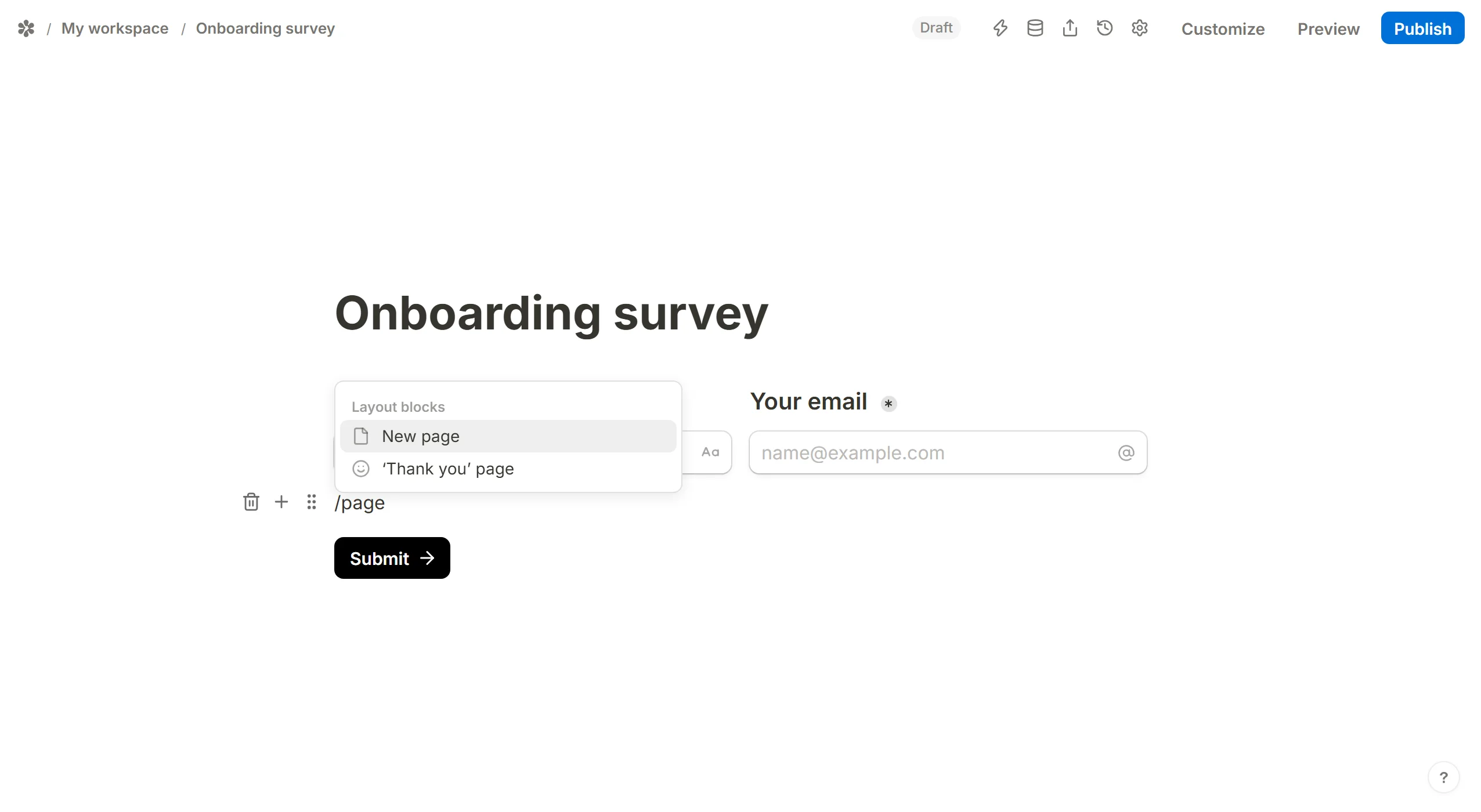

Type /page in the editor and pick New page. A page divider appears at the caret with the page's number beside it; every block below the line is on the new page, and the page above it gains a Next button.
For one question per page, put a New page after each question. There is no ceiling on pages or on questions per page.
Settings → General so respondents can see how far they have come.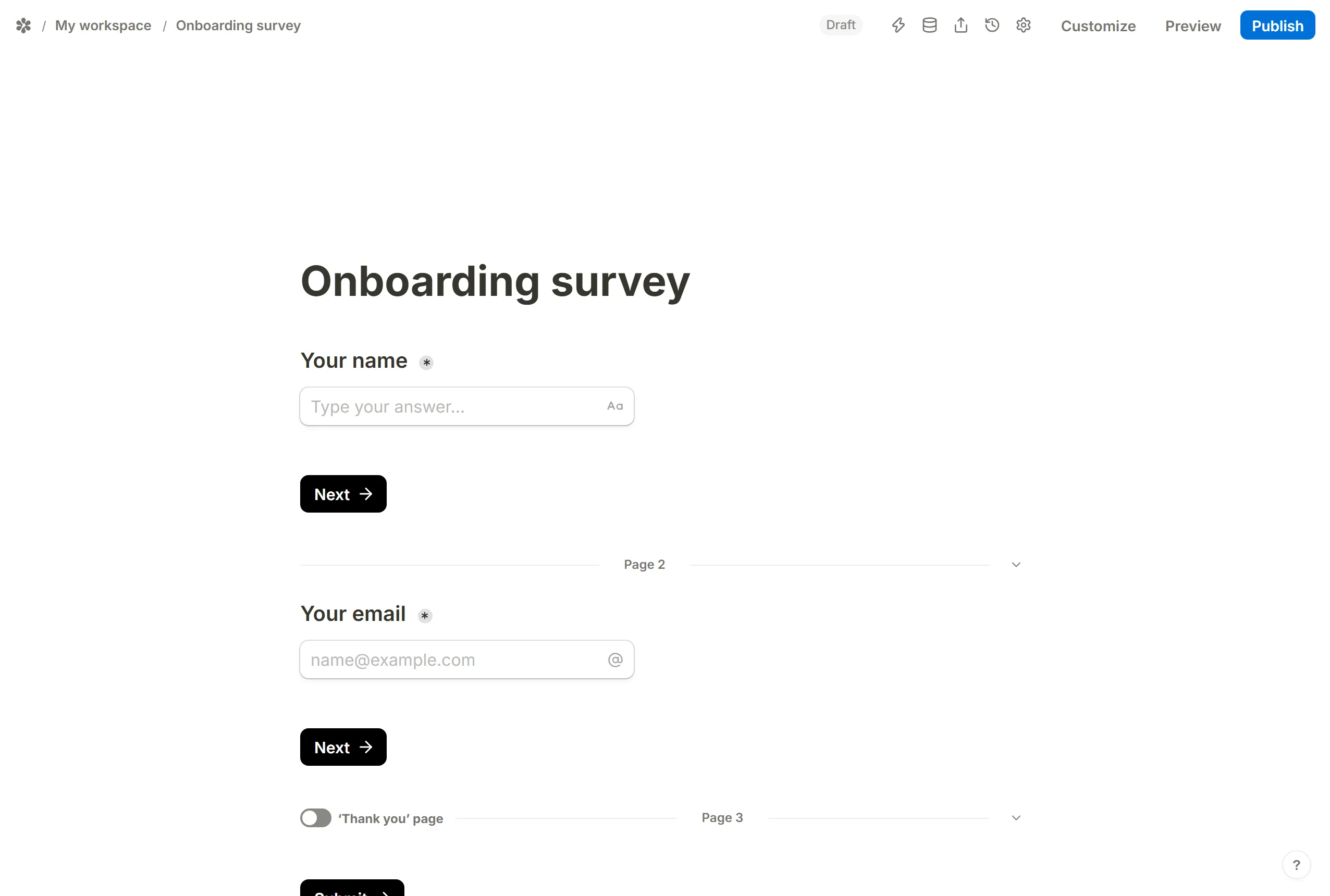
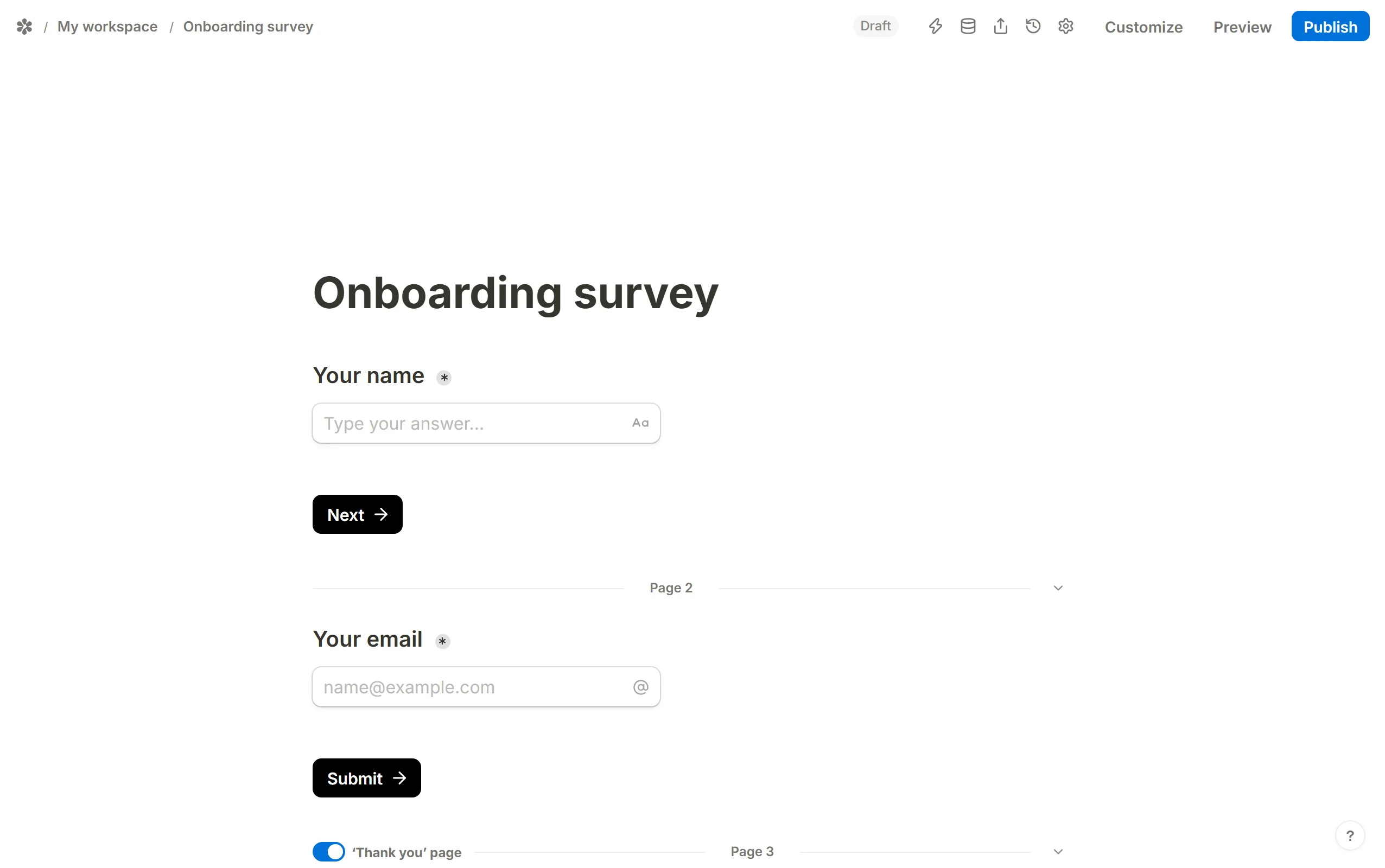
The last page break carries a ‘Thank you’ page switch. Turn it on, or type /thank, to make everything below it the Thank you page: the screen shown after the submit, which can hold any content from a line of text to an embedded video. The page before it then ends with Submit instead of Next.
Continue and the last Send.Fold pages to keep a long form readable
On a long form, press the arrow beside a page's name to Fold page. The page collapses to a single line that says how many blocks it holds, and Unfold page opens it again. Press the name itself, Change page name, to give the page a title of its own instead of its number; the name shows on the canvas and in the page picker of a logic block.
Auto-jump to the next page
When a page holds exactly one choice question, the Next button is an extra click. With auto-jump on, picking an answer moves the respondent to the next page by itself.
Auto-jump works for a page whose only question is a multiple choice, a dropdown, a rating or a linear scale.

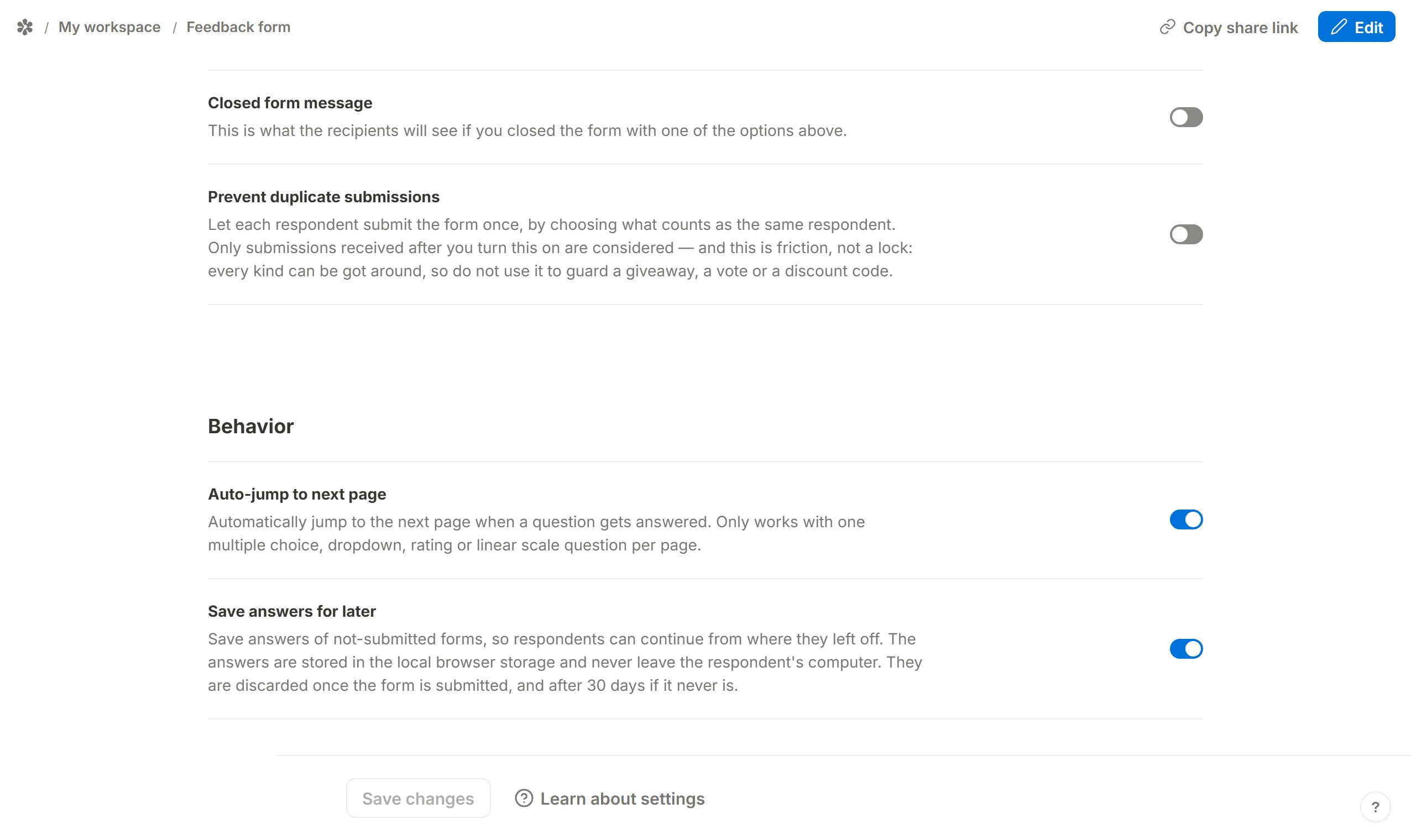
It is off by default. To turn it on:
Open the form
Go to the form's tabs and pickSettings.Find Behavior
Scroll to theBehaviorsection.Turn on Auto-jump to next page
The switch reads: only works with one multiple choice, dropdown, rating or linear scale question per page.Save
PressSave changesat the foot of the page.
Jump to page action fires when they press Next or Submit; every other action updates as they type.